Mini Python Interpreter
One useful tool (and demo!) is the Mini Python Interpreter. Drop the file into your Resource/plugins/PythonPlugins folder. (Or download the latest using the Download Samples menu item & move the file up into the PythonPlugins folder.)
Note
You can’t set breakpoints, but you can create and execute most python code, including multi-line functions.
MiniPython will create a menu item which toggles the display of the interpreter. When displayed it looks like
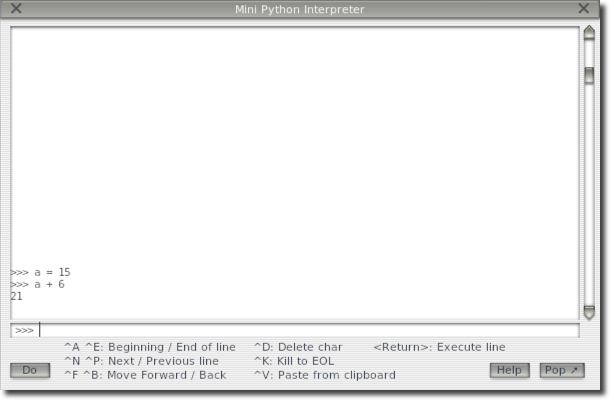
Type a command or expression in the bottom field and press <Return> or click the “Do” button and your code will be executed, with the results being displayed in the scrolling window. Pressing “Help” will open a browser window to documentation.
We’ll store your locals, so you can type:
>>> a = 15
>>> a + 6
21
Since my keyboard is always typing the wrong thing, this TextField widget has some extra features: Typing UpArrow or Ctrl-P will display the previous command you’ve typed. Repeating that key will traverse history. DownArrow or Ctrl-N will display the next command in your history.
Other editing keystrokes are available, and listed in the popup window.
The window itself, can be popped-out (Press the Pop ↗︎ button in the lower right corner) and moved to a different monitor and resized.
Some useful things to do:
Explore the SDK: Not sure how something works? Type it into the interpreter (“xp” module is already imported). Note that we’ve also added help() for SDK apis.:
>>> xp.getSystemPath()
'/Volumes/Disk1/X-Plane/'
>>> help(xp.createMenu)
Help on built-in function createMenu in module XPLMMenus:
|
createMenu(name=None, parentMenuID=None, parentItem=0, handler=None, refCon=None)
|    Creates menu, returning menuID or None on error.
|
|    parentMenuId=None adds menu to PluginsMenu.
We’ve added hundreds of directly executable examples in this XPPython3 documentation: You can copy from your web browser and paste (paste using Ctrl-V) into the debugger.
Search SDK: Don’t remember the exact function name? The debugger window supports searching: Type a slash followed by a word and we’ll search the
xpmodule and return a list of matching functions and constants.>>> /font Font_Basic Font_Proportional Property_Font getFontDimensions >>> help(xp.getFontDimensions) Help on built-in function getFontDimensions in module XPLMGraphics: | getFontDimensions(fontID) | Get information about font | | Returns (width, height, digitsOnly). Proportional fonts | return hopefully average width.
Search DataRefs: Search through datarefs (actually the Laminar provided DataRefs.txt file) using a question mark.
>>> ?G1000
sim/cockpit/g1000/gcu478 input sel int y enum FMS=0 XPDR=1 COM=2 NAV=3
sim/graphics/misc/kill_g1000_ah int y boolean If set to true, the G1000 PFD instrument won't
|  draw the attitude indicator background
sim/cockpit2/autopilot/vnav_armed int n boolean Vnav is armed, o or 1 - this is different
|  from the "FMS" button - it is used ONLY for a physical G1000 connected by ethernet.
Execute X-Plane Commands:
>>> pause_cmd = xp.findCommand('sim/operation/pause_toggle')
>>> pause_cmd
<capsule object "XPLMCommandRef" at 0x7566f330ad>
>>> xp.commandOnce(pause_cmd)
Manipulate X-Plane DataRefs:
>>> time = xp.findDataRef('sim/time/zulu_time_sec')
>>> time
<capsule object "datarefRef" at 0x7fc44329920>
>>> xp.getDataf(time)
44768.0
>>> xp.getDataf(time)
44771.2
>>> xp.setDataf(time, 100)
>>> xp.getDataf(time)
102.1
Create Callback:
>>> def MyCallback(menuID, refCon):
...    xp.log("in callback")
...
>>> xp.createMenu('New Menu', handler=MyCallback)
<capsule object "XPLMMenuIDRef" at 0x75334211d>
Debug your Plugin: Note that you’ll need access to your plugin from the interpreter. You can use some helper functions, defined by the interpreter (not part of
xpmodule).getPluginList()returns list of python plugin signatures.getPluginInstance(signature)returns the PythonInterface object for the plugin with the named signature.
>>> getPluginList()
['xppython3.firstTime', 'xppython3.updater.3.9', 'xppython3.minipython', 'test.myplugin']
>>> instance = getPluginInstance('test.myplugin')
>>> instance
<PythonPlugins.PI_MyPlugin.PythonInterface object at 0x7fd692ae73a0>
From there, you’ll be able to access your full plugin instance, updating instance attributes, calling instance methods.