XPPython3 Stubs
Because core XPPython3 code is embedded in a compiled library, and cannot be executed outside of a running X-Plane instance, it is more difficult to code and error check python plugins than coding standalone python applications.
By using stubs, we can “fake” out editors and linters, by using stub files: python code which provides function signatures but which are not suitable for execution.
XPPython3 includes a fully annotated set of stub files downloadable from github: stubs.zip.
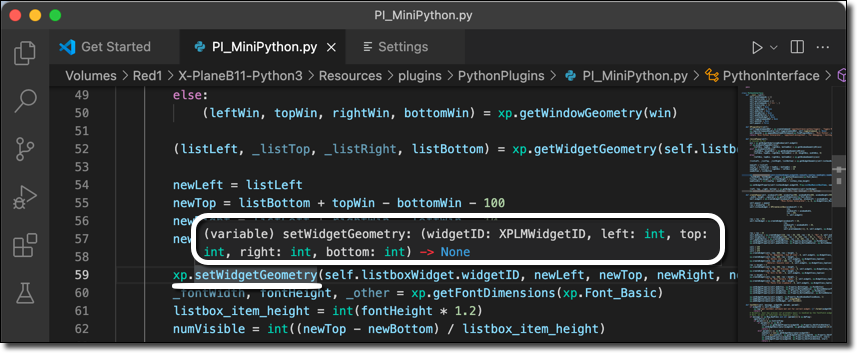
The result depends on your tools, but you may get hinting as well as static type-checking. For example with Microsoft Visual Studio Code:
To use:
These stub files must be placed outside of the X-Plane hierarchy so they are not available to X-Plane while it is running.
Include the stub directory as part of your python path (during development). You should also include your
Resources/plugins/XPPython3directory, to pick upxp.py.Configuring your development environment will, of course, depend on which development environment / tools you use. Here are some examples.
Assume my installation is:
Plugin in:
/Volumes/Monster/X-Plane11/Resources/plugins/XPPython3Stubs in:
/Volumes/Monster/dev/xplane/stubs
For
pylint
Update
~/.pylintrcfile, adding something like:[MASTER] init-hook="import sys;sys.path.extend(['.', '/Volumes/Monster/dev/xplane/stubs', '/Volumes/Monster/X-Plane11/Resources/plugins/XPPython3', '/Volumes/Monster/X-Plane11/Resources/plugins'])"Note:
init-hookmust be on a single line, I’ve added newlines for readability.mypy
Update
~/.mypy.iniadding the path, like:[mypy] mypy_path = .: /Volumes/Monster/dev/xplane/stubs: /Volumes/Monster/X-Plane11/Resources/plugins/XPPython3: /Volumes/Monster/X-Plane11/Resrouces/plugins check_untyped_defs = True [mypy-OpenGL.*] ignore_missing_imports = TrueNote:
mypy_pathmust be on a single line, I’ve added newlines for readability.MS Visual Studio Code
Add paths to
python.analysis.extraPaths. For example, yoursettings.jsonmight look like:{ "python.defaultInterpreterPath": "/usr/local/bin/python3", "python.analysis.extraPaths": [ ".", "/Volumes/Monster/dev/xplane/stubs", "/Volumes/Monster/X-Plane11/Resources/plugins/XPPython3", "/Volumes/Monster/X-Plane11/Resources/plugins" ] }PyCharm
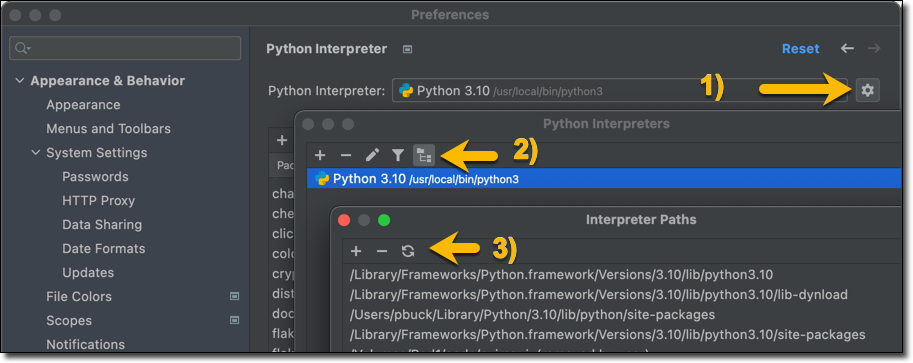
Add paths to your “Interpreter path”. From Preferenes select “Python Interpreter”.
Select the Cog item in the upper right, next to your selected python version, a select “Show All…”.
In the popup, select your python version, which will cause the five icons at the top of the popup to become enabled. Select the right-most “Folders” icon.
Another popup is displayed. Use the ‘+’ to add the necessary paths.