Hello Widget
Simple Hello Widget program which creates and displays widgets in a window.
Widgets are what we call buttons, labels, text fields, etc., which allow a plugin to interact with the user. Laminar support a very basic UI construction SDK and this example will show you how to use it.
- note
The Widget library is old. It looks old. Laminar Research knows it’s old and while there may be a desire to open the newer internal GUI framework via the SDK, there are no plans to actually do it – or the plans have lower priority than everything else people want.
The modern Windows API (See Hello World ) allows you to draw text and listen for mouse clicks, so conceiveabely you could build your own custom UI, but if you want something relatively easy to use and already implemented, use the existing Widgets.
An overview of Widgets is provided in XPWidgets: You’ll create a hierarchy of widgets, with one or more callback functions. Messages are passed to widgets as they occur and (may) bubble up to parent widgets. These messages are different from plugin- or window-level messages.
For our example here, we’ll create Widget window, add some labeled, editable, text fields and end with a button widget.
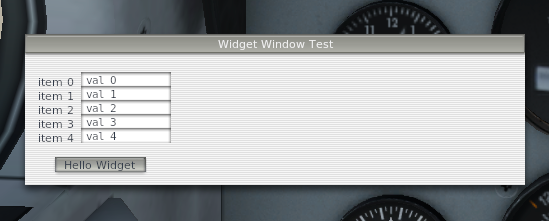
More useful, perhaps, is we include a simple module which will translate widget messages into something more readable.
import xp
from widgetMsgHelper import WidgetMessage


class PythonInterface:
    def __init__(self):
        self.Name = "HelloWidget1"
        self.Sig = "helloWidget1.demos.xppython3"
        self.Desc = "A test plugin for the Python Interface."
        self.myWidgetWindow = None
        self.widgetMsgCounter = {}  # Used to limit # of times we print receive of message (otherwise, there'll be thousands!)

    def XPluginStart(self):
        return self.Name, self.Sig, self.Desc

    def XPluginEnable(self):
        self.myWidgetWindow = self.createWidgetWindow()
        return 1

    def XPluginDisable(self):
        if self.myWidgetWindow:
            xp.destroyWidget(self.myWidgetWindow['widgetID'], 1)
            self.myWidgetWindow = None

    def XPluginStop(self):
        pass

    def XPluginReceiveMessage(self, inFromWho, inMessage, inParam):
        pass

    def createWidgetWindow(self):
        widgetWindow = {'widgetID': None,  # the ID of the main window containing all other widgets
                        'widgets': {}  # hash of all child widgets we care about
        }
        widgetWindow['widgetID'] = xp.createWidget(100, 200, 600, 50, 1, "Widget Window Test",
                                                   1, 0, xp.WidgetClass_MainWindow)
        xp.addWidgetCallback(widgetWindow['widgetID'], self.widgetCallback)

        # Add five label / editable text fields.
        # We determine placement based on the size of the font.
        # We'll "keep" the text fields so we can interact with them
        fontID = xp.Font_Proportional
        _w, strHeight, _ignore = xp.getFontDimensions(fontID)
        for i in range(5):
            s = 'item {}'.format(i)
            strWidth = xp.measureString(fontID, s)
            left = 100 + 10
            top = int(160 - ((strHeight + 4) * i))
            right = int(left + strWidth)
            bottom = int(top - strHeight)
            xp.createWidget(left, top, right, bottom, 1, s, 0, widgetWindow['widgetID'], xp.WidgetClass_Caption)
            widget = xp.createWidget(right + 10, top, right + 100, bottom, 1, 'val {}'.format(i), 0,
                                     widgetWindow['widgetID'],
                                     xp.WidgetClass_TextField)
            widgetWindow['widgets']['textfield-{}'.format(i)] = widget

        # add a button at the bottom
        s = "Hello Widget"
        strWidth = xp.measureString(fontID, s)
        left = 100 + 10 + 20
        top = int(150 - (5 + (strHeight + 4) * 5))
        right = int(left + strWidth + 20)
        bottom = int(top - strHeight)
        widgetWindow['widgets']['button'] = xp.createWidget(left, top, right, bottom,
                                                            1, s, 0, widgetWindow['widgetID'],
                                                            xp.WidgetClass_Button)
        return widgetWindow

    def widgetCallback(self, inMessage, inWidget, inParam1, inParam2):
        self.widgetMsgCounter[inMessage] = 1 + self.widgetMsgCounter.setdefault(inMessage, 0)
        if self.widgetMsgCounter[inMessage] < 10:
            print('{} {}'.format(inWidget, WidgetMessage(inMessage, inParam1, inParam2)))
        return self.mainWindowCallback(inMessage, inWidget, inParam1, inParam2)

    def mainWindowCallback(self, inMessage, inWidget, inParam1, inParam2):
        if inMessage == xp.Msg_Paint:
            return 0  # so 'draw' is called
        if inMessage == xp.Msg_CursorAdjust:
            inParam2 = xp.CursorDefault
            return 1
        return 0  # forward message to "next"
Let’s go through the differences from Hello World example.
At a high level, we:
create a widget of type
xp.WidgetClass_MainWindow, indicating it is the root of our set of widgets, and initially visible.add a callback to it, and then,
create a number of child widgets (
xp.WidgetClass_Caption,xp.WidgetClass_TextField,xp.WidgetClass_Button), each of which points to the parent.
Within the callback, we look at the widget messages being passed and act upon them.
Details
First, notice we import from widgetMsgHelper. This module is found under
XPython/demos/.
You’ll need to make sure you copy that file (also) to your Resources/plugins/PythonPlugins
folder.
While required for this example, it simply decodes widget messages for human consumption.
Note we create within XPluginEnable() and destroy within XPluginDisable(). This balance make it easier to reload the plugin during testing & know that it’s cleaning up properly.
self.createWindowWidget()
Our function is going to create the main + child widgets and return a data structure with all the widget information we need. We’ll store the results with the PythonInterface class so we’ll always have access to it.
First few lines of createWidgetWindow() merely create the initial data structure, create and set the main window widgetID, and then add my callback function for that main window.
widgetWindow = {'widgetID': None,  # the ID of the main window containing all other widgets
                'widgets': {}  # hash of all child widgets we care about
}
widgetWindow['widgetID'] = xp.createWidget(100, 200, 600, 50,  # (left, top, right, bottom)
                                           1,  # intially visible
                                           "Widget Window Test",  # desciptor (== title for MainWindow)
                                           1,  # IsRoot widget,
                                           0,  # parent widget (0 for Root)
                                           xp.WidgetClass_MainWindow  # widget class
                                           )
xp.addWidgetCallback(widgetWindow['widgetID'], self.widgetCallback)
Next, we loop creating 5 labels (Caption) and 5 text fields. Since we need to position the widgets we use font metrics to determine the height of each “row”.
We store the widgetID (i.e., the return from xp.createWidget()) for each text field. That
would allow us to identify which widget was changed. Since we’re not looking for interaction
with the labels (captions) we don’t bother to save their IDs.
for i in range(5):
    s = 'item {}'.format(i)
    strWidth = xp.measureString(fontID, s)
    left = 100 + 10
    top = int(160 - ((strHeight + 4) * i))
    right = int(left + strWidth)
    bottom = int(top - strHeight)
    xp.createWidget(left, top, right, bottom, 1, s, 0, widgetWindow['widgetID'], xp.WidgetClass_Caption)
    widget = xp.createWidget(right + 10, top, right + 100, bottom, 1, 'val {}'.format(i), 0,
                             widgetWindow['widgetID'],
                             xp.WidgetClass_TextField)
    widgetWindow['widgets']['textfield-{}'.format(i)] = widget
Note that positions must be integers so we cast to int just in case xp.measureString(), or xp.getFontDimensions()
return non-integer values.
Finally we create the button widget, sizing it based on it’s content.
s = "Hello Widget"
strWidth = xp.measureString(fontID, s)
left = 100 + 10 + 20
top = int(150 - (5 + (strHeight + 4) * 5))
right = int(left + strWidth + 20)
bottom = int(top - strHeight)
widgetWindow['widgets']['button'] = xp.createWidget(left, top, right, bottom,
                                                    1, s, 0, widgetWindow['widgetID'],
                                                    xp.WidgetClass_Button)
self.widgetCallback()
Our widget callback handles the message for all of our widgets, and prints out the message. To avoid being overwhelmed by thousand of messages in XPPython.log, we implement a simple counter: We’ll actually print out only the first 10 occuranced of any message type.
Each invocation of the callback is passed the message itself, the widget to which the message is directed, and two parameters. See code in WidgetMessage to see the meaning of param1 and param2.
def widgetCallback(self, inMessage, inWidget, inParam1, inParam2):
    self.widgetMsgCounter[inMessage] = 1 + self.widgetMsgCounter.setdefault(inMessage, 0)
    if self.widgetMsgCounter[inMessage] < 10:
        print('{} {}'.format(inWidget, WidgetMessage(inMessage, inParam1, inParam2)))
    return self.mainWindowCallback(inMessage, inWidget, inParam1, inParam2)
After our widget printing, we return 0 or 1 to indicate if we’ve handled the widget message.
Note that for xp.Msg_CursorAdjust we also need to set the value if inParam2 to how
we want the mouse cursor to be displayed.
if inMessage == xp.Msg_Paint:
    return 0  # so 'draw' is called
if inMessage == xp.Msg_CursorAdjust:
    inParam2 = xp.CursorDefault
    return 1
return 0  # forward message to "next"
Run the plugin with a window to XPPython.log open: Move the mouse over widgets, click, edit values, and you’ll see the messages being received. Modify the callback to do something on the messages to better understand widgets.