Hello World
Simple Hello World program which creates and displays a message in a window.
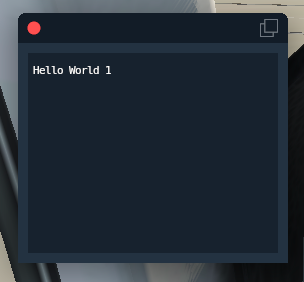
import xp

class PythonInterface:
    def __init__(self):
        self.Name = "HelloWorld1"
        self.Sig = "helloWorld1.demos.xppython3"
        self.Desc = "A test plugin for the Python Interface."

    def XPluginStart(self):
        windowInfo = (50, 600, 300, 400, 1,
                      self.DrawWindowCallback,
                      self.MouseClickCallback,
                      self.KeyCallback,
                      self.CursorCallback,
                      self.MouseWheelCallback,
                      0,
                      xp.WindowDecorationRoundRectangle,
                      xp.WindowLayerFloatingWindows,
                      None)
        self.WindowId = xp.createWindowEx(windowInfo)
        return self.Name, self.Sig, self.Desc

    def XPluginStop(self):
        xp.destroyWindow(self.WindowId)

    def XPluginEnable(self):
        return 1

    def XPluginDisable(self):
        pass

    def XPluginReceiveMessage(self, inFromWho, inMessage, inParam):
        pass

    def DrawWindowCallback(self, inWindowID, inRefcon):
        (left, top, right, bottom) = xp.getWindowGeometry(inWindowID)
        xp.drawTranslucentDarkBox(left, top, right, bottom)
        color = 1.0, 1.0, 1.0
        xp.drawString(color, left + 5, top - 20, "Hello World", 0, xp.Font_Basic)

    def KeyCallback(self, inWindowID, inKey, inFlags, inVirtualKey, inRefcon, losingFocus):
        pass

    def MouseClickCallback(self, inWindowID, x, y, inMouse, inRefcon):
        return 1

    def CursorCallback(self, inWindowID, x, y, inRefcon):
        return xp.CursorDefault

    def MouseWheelCallback(self, inWindowID, x, y, wheel, clicks, inRefcon):
        return 1
Let’s go through the differences from Skeleton example.
At a high level, all we do is create a window in XPluginStart, and destroy it it XPluginStop.
It’s a good idea that anything you create or register in Start you destroy or unregister in Stop.
Similarly, if you do it in Enable, un-do it in Disable.
When the window is created we provide callbacks. These are invoked by X-Plane when certain events occur, allowing us to respond. We save the windowID as in instance member so it’s available to us later when we need to destroy it.
Details
First, consider the import xp. As with most python programs, we’re importing other modules. For XPPython3,
we have two choices. By importing the xp module, we’re using the simplified API (See xp module description.)
Otherwise, we would use:
from XPLMDisplay import XPLMCreateWindowEx, XPLMDestroyWindow, XPLMGetWindowGeometry
from XPLMDisplay import xplm_CursorDefault
from XPLMGraphics import XPLMDrawString, XPLMDrawTranslucentDarkBox
from XPLMGraphics import xplmFont_Basic
xp.py exists because I could never remember xplm_Cursor but xplmFont_, XPLMGraphics but XPWidgets. You
can intermix the styles if you prefer, but I’m done with typing x-p-l-m.
CreateWindowEx
In XPluginStart we use xp.createWindowEx() (i.e., XPLMDisplay.XPLMCreateWindowEx()) which takes
a tuple as input. The first four items are the corners (left, top, right, bottom). X-Plane 2-D coordinates increase going left-to-right,
and from bottom-to-top. So (50, 600, 300, 400) is a box with upper left corner a (50, 600) and bottom right corner at (300, 400):
^        (50, 600) -----------------+
|            |                      |
|            |                      |
|            |                      |
|            +------------------(300, 400)
|
|
+ (0,0) ------------------->
After the position integers, there is 1 so the window is immediately visible. If 0, then we’d need to
make it visible in response to an event (menu, key press, etc.)
Then there are the list of five callbacks. These must be existing functions, we cannot pass None, even if we don’t want them to do anything. This is in contrast with the final callback for RightClickHandler, which we are permitted to set to None.
- DrawWindow
Called whenever X-Plane needs to draw our window. This will be every frame it is visible, so ideally keep this fast. In our example, we get the (current) size of the box, draw a translucent background and then draw our text string on top of the box (offsetting a bit from the top/left corner). DrawWindow callbacks have no return value.
- HandleMouseClick
When someone click on our window, we’ll get this callback. The input parameters tell us where the event occurred, and if it is MouseUp, MouseDown, or MouseDrag. We don’t care, so we don’t check. Returning
1makes the window absorb the click, returning0would pass the click through our window, allowing someone else to handle it (which is rarely what you want to do.)- HandleKey
Next callback handles any key stroke occuring while our window has keyboard focus. We’ll get info on which key has been pressed. We’re ignoring it. HandleKey callbacks have no return value.
- HandleCursor
The Cursor callback tells X-Plane if it should change the cursor to some other shape while it is over your window. (You can also hide the cursor.) You must return what you want the cursor to be and the simplest is to return CursorDefault (
XPLMDisplay.xplm_CursorDefault) which says “we don’t care”.- HandleMouseWheel
Similar to handling mouse clicks, we handle any mouse wheel movement by doing nothing, but returning
1to tell X-Plane we’ve absorbed it.
After these callbacks is the reference constant: this allows us to pass custom data (defined during create) to the callbacks. That’s a simple way to have multiple windows using the same handlers, but doing slightly different things based on the passed reference constant.
Then, two creation parameters: the window type (XPMLDisplay.xplm_windowDecorationRoundRectangle), and layer the window is drawn in (XPLMDisplay.xplm_WindowLayerFloatingWindow). Most of your windows will be drawn in this layer.
And finally we pass None for our MouseRightClick callback.
We store the results of createWindowEx so it’s available later when we destroy it as part of cleanup.
Given we’ve already described the DrawWindow callback above, that’s the whole plugin.
See Hello Widget for next example.