AvnWx Tracker Plugin
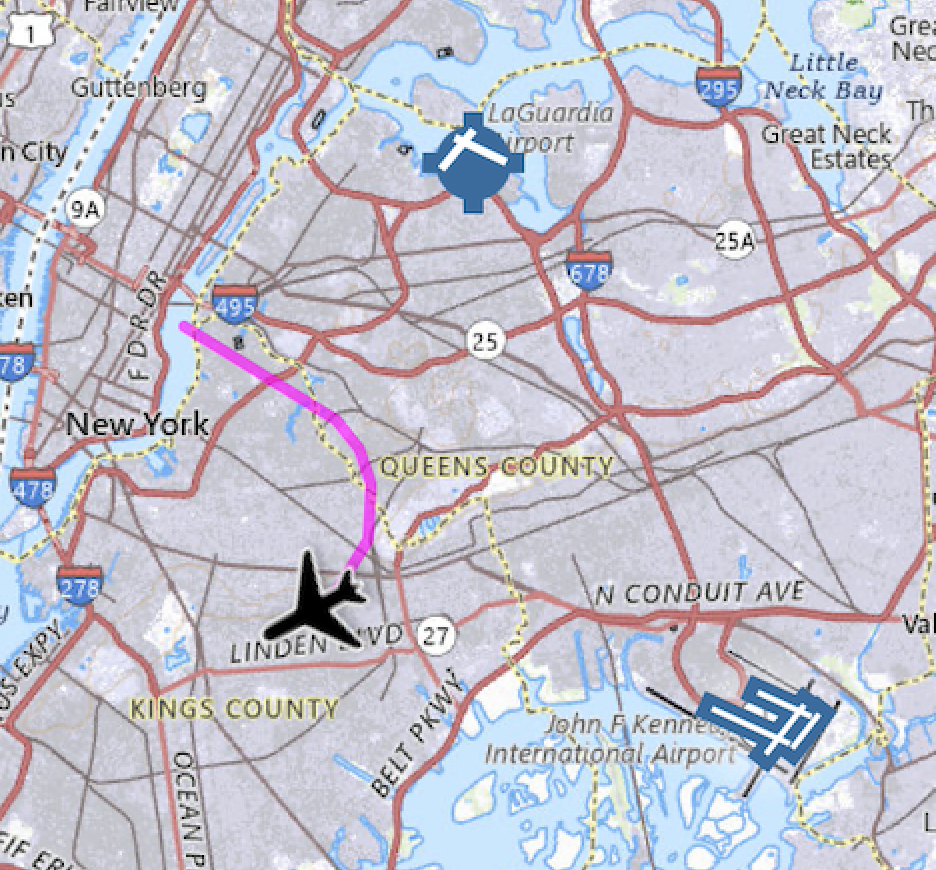
This plugin allows users of my Aviation Weather website maps.AvnWx.com to view their X-Plane aircraft positioned on an updating map. Both plugin and website are free, though a (free) login is required for the website.
The website gathers current NOAA-provided weather data from around the world. Airport and Navaid information is displayed as provided by the US National Flight Data Center (NFDC). The site has been operational since 2007, providing real-world weather to real-world pilots. With a bit of re-tooling, I’ve added the feature allowing you to send aircraft-position to the site which results in real-time updates on a moving map.
You’ll need internet access from your X-Plane computer to get this to work as it will post your aircraft location once every second.
To Enable
Install XPPython3 (See Plugin Installation) and restart X-Plane.
Move both
PI_AvnWx.pyfile and theavnwxdirectory fromResources/plugins/PythonPlugins/samplestoResources/plugins/PythonPlugins. This will enable this particular python plugin. Note that thesamplesdirectory is automatically downloaded and installed on first execution of X-Plane after you’ve installed XPPython3 (step 1).Get your API Key from
maps.avnwx.com. You’ll find this displayed in the side panel. (See below).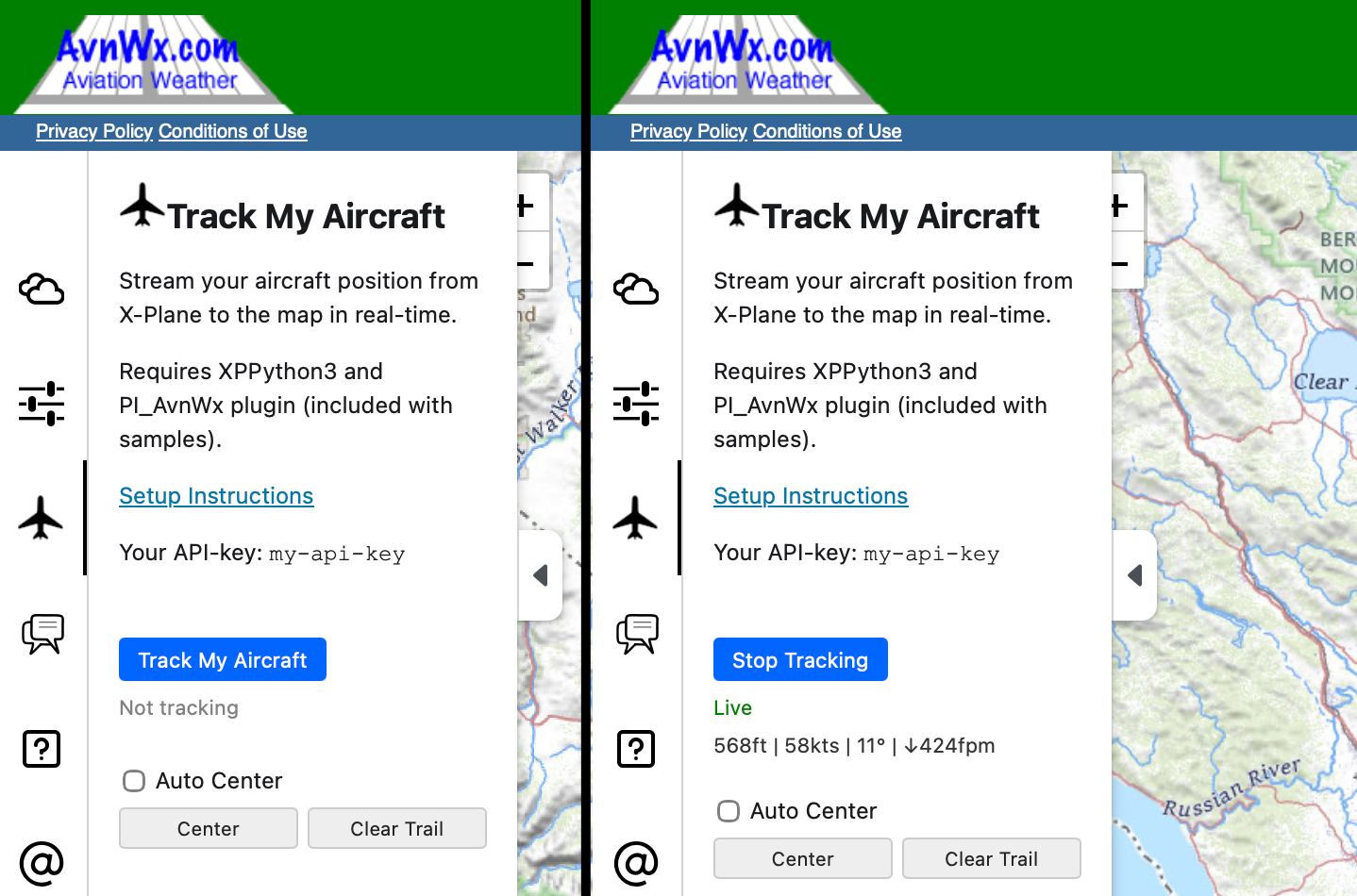
There’s nothing secret about your API key: it’s what we use to distinguish “your” aircraft from all others.
Set your API Key so the plugin can read it: In the
avnwxdirectory you moved, there is a file calledapi-key.txt. Edit this file, replacing the contents with the key you retrieved in the previous step. (We’ll ignore white space and hyphens.):$ cat avnwx/api-key.txt 6TYZE
Start X-Plane
Plugin will automatically spawn a process to read aircraft position and post it to our server and associate it with your API key.
Access maps.AvnWx.com. Login as usual, Enable tracking using the blue Track My Aircraft button.
Once you’ve enabled the plugin and properly set the API key, there is nothing more you need to do.
To Use
Assuming you’ve installed the plugin correctly, access AvnWx.com and Start/Stop tracking via the side-panel. If your X-Plane is not sending information to the server you’ll either see an error “No data” in the side-panel, or the side-panel will indicate the data is “stale” meaning the most recently received data is older than 30 seconds.
You can enable Auto Center which will cause the aircraft to be centered in the window with the maps slowing moving beneath. Otherwise the aircraft will move, potentially off the screen. Auto Center is dis-engaged if you manually move the map (other than simple Zoom change). Press the Center button to temporarily re-center the map and aircraft.
In case of stale data or error, check the tracker log file on the computer running X-Plane (see below).
In case of errors
All errors are due to lack sending data from your X-Plane to the AvnWx.com server.
Check the following:
X-Plane is running.
X-Plane has access to the Internet.
XPPython3 plugin is running within X-Plane (Should see a new
<X-Plane>/XPPython3Log.txt.)The PI_AvnWx.py python plugin is running within XPPython3 (It will be listed in
<X-Plane>/XPPython3Log.txt, and there is a log fileavnwx/trackerLog.txt.The API Key in the side-panel matches the API key you typed into the
<X-Plane>/Resources/plugins/PythonPlugins/avnwx/api-key.txtfile in your X-Plane installation. (Incorrect API key or X-Plane not running will result in “No data” being displayed in the browser.)
If you don’t see a new trackerLog.txt file, look for errors in XPPython3Log.txt: It’s not a browser, network, or api-key problem.
Once you see avnwx/trackerLog.txt, you should see a few messages about Discovering X-Plane instances,
followed by a request for position data:
[2026-01-02 10:11:28] INFO: stream_to_server started
[2026-01-02 10:11:28] Listening for X-Plane UDP broadcasts on 0.0.0.0:49002
[2026-01-02 10:11:28] Make sure 'Broadcast To All Mapping Apps' is enabled in X-Plane Network settings
[2026-01-02 10:11:28]
[2026-01-02 10:11:28] INFO: receiver started
[2026-01-02 10:11:28] Waiting for X-Plane UDP broadcast data...
[2026-01-02 10:11:28] Will post to https://maps.avnwx.com/api/aircraft/push with key MYAPIKEY
[2026-01-02 10:11:28] ------------------------------------------------------------
[2026-01-02 10:11:28] ⚠ Waiting for valid position data from X-Plane...
[2026-01-02 10:11:28] ⚠ Waiting for valid position data from X-Plane...
[2026-01-02 10:11:38]    ✓ 36.5849, -121.8338 | 231ft (-0ft AGL) | -67° | 0kts
[2026-01-02 10:11:48]    ✓ 36.5849, -121.8338 | 231ft (-0ft AGL) | -67° | 0kts
...
[2026-01-02 13:10:40] INFO: Received SIGTERM signal - initiating graceful shutdown
[2026-01-02 13:10:40]
Stopping...
[2026-01-02 13:10:40] Stopped listening for X-Plane UDP broadcasts
⚠ Waiting for valid position data from X-Plane…
Initially, not an error. If this persists once X-Plane has finished loaded, you should get either position data, or some other error.
⏱ Still listening for X-Plane UDP broadcasts (no data received yet)…
Means X-Plane isn’t sending position data to this plugin. Likely this is because you’ve not enabled “Broadcast To All Mapping Apps” on the X-Plane Network setting. Enable that feature and you should immediately see more messages in the tracking log.
✗ Network error: HTTPSConnectionPool(host=’maps2.avnwx.com’, port=443): Read timed out.
Means the application on my AvnWx.com server is not working properly. Nothing you can do except perhaps send me an email to kick the server.
✗ Network error: HTTPSConnectionPool(host=’maps2.avnwx.com’, port=443): Max retries exceeded with url: /api/aircraft/push
Means your network connection is unable to connect to my server: Either my server is down or (more likely) your computer isn’t properly connected to the Internet.
If the log file looks good, but your browser isn’t showing correct aircraft location, it is likely that the API keys don’t match.
In any case, reloading the browser or stop/restart of tracking on the browser is very unlikely to fix anything: check the trackerLog.txt file instead.