XPCursor
To use:
import xp
Platform-independent way to use custom cursors. These routines are not part of X-Plane SDK.
Cursor files
A custom cursor consists of two files: A PNG file to be used for Mac and Linux, and a Windows CUR (Cursor) file. Usually, you’d create the 32x32 pixel PNG file and then use an online-converter to create the corresponding CUR file.
Both files should be located in the same directory, where they will be found
by loadCursor().
XPPython3 includes some pre-defined cursors which are loaded at startup: you do
not need to separated load these as they are immediately available for use with
setCursor().
Normally, there is no need to call unloadCursor().
Usage
You should load any custom cursors prior to use using loadCursor(). Repeated calls will result
in additional cursor definitions, in which case you might want to remove previous definitions
using unloadCursor().
Custom cursors can be set (setCursor()) in only a few very-specific callbacks:
Within a Window
xp.cursor()callback.Within Avionics
xp.screenCursor()orxp.bezelCursor()callback.When processing a Widget message
xp.Msg_CursorAdjust.
Functions
- loadCursor(name)
Loads a custom cursor from a file using the provided name and a platform-specific filename extension.
- Parameters
name (str) – Cursor name (path relative to X-Plane root, without extension)
- Returns
Cursor ID for use with setCursor and unloadCursor
- Return type
int
- Raises
Exception if file cannot be read or has incorrect format
The file to be loaded will be <name>.png for Linux and Mac; <name>.cur for Windows. Name must include relative path from the X-Plane root.:
>>> cursorID = xp.loadCursor('Resources/plugins/XPPython3/cursors/Arrow_Up_Black')
>>> cursorID
18
Note
In the above example, the “Arrow_Up_Black” cursor is already loaded with cursor_id=1. I use it as an example because I know the files exist on your installation. You don’t need to (i.e., you should not) load any of the pre-defined cursors listed below as that is just a waste of space.
- unloadCursor(cursor_id)
Unloads image data related to the given cursor ID.
- Parameters
cursor_id (int) – Cursor ID returned by loadCursor
- Returns
None
>>> xp.unloadCursor(18)
- setCursor(cursor_id)
Temporarily replaces system cursor with the given custom cursor.
- Parameters
cursor_id (int) – Cursor ID from loadCursor or preloaded cursor ID
- Returns
None
- Raises
Exception if cursor_id is not a known cursor
For X-Plane windows (i.e., created with
xp.createWindowEx()), you should define a cursor callback, and within that callback, callsetCursor()and have your callback returnxp.CursorCustom. If you return anything else, your cursor will not be used:>>> def myCursorCallback(windowID, x, y, refCon): ... xp.setCursor(11) ... return xp.CursorCustom ... >>> xp.createWindowEx(visible=1, cursor=myCursorCallback)

For X-Plane Avionics, you can define separate callbacks for
xp.bezelCursor()andxp.screenCursor(). In this example, we create a simple avionics, with a green lower-half:>>> from XPPython3 import xpgl >>> def screenCB(refCon): ... xpgl.drawRectangle(0, 0, 100, 100, color=(0, 1, 0)) ... >>> def bezelCB(r, g, b, refCon): ... xpgl.drawRectangle(0, 0, 140, 250, color=(0, 0, 0)) ... >>> def cursorCB(x, y, refCon): ... if x < 100 and y < 100: # only change cursor within the green portion of screen ... xp.setCursor(11) ... return xp.CursorCustom ... return xp.CursorDefault ... >>> avionicsID = xp.createAvionicsEx(screenCursor=cursorCB, screenDraw=screenCB, bezelDraw=bezelCB) >>> xp.setAvionicsPopupVisible(avionicsID)

For built-in avionics, you’ll use
xp.registerAvionicsCallbacksEx()to provide the screen and/or bezel cursor callbacks.For Widgets, you’ll install a widget callback routine using
xp.addWidgetCallback()(you’ll probably already have a callback routine if you’re doing much of anything with widgets.) That callback will receive a series of messages. When it receives thexp.Msg_CursorAdjust, you should check to see if the mouse is over the widget you’re interested in, or at the correct X, Y location. Then callsetCursor(), update param2 to indicatexp.CursorCustom, and return 1 to indicate you’ve consumed the event.:>>> widgetID = xp.createWidget(100, 200, 300, 100, 1, "My Widget", 1, 0, xp.WidgetClass_MainWindow) >>> subwidgetID = xp.createWidget(110, 190, 130, 170, 1, "WIDE", 0, widgetID, xp.WidgetClass_Caption) >>> def myCallback(message, widgetID, param1, param2): ... if message == xp.Msg_CursorAdjust: ... xp.setCursor(10) ... param2[0] = xp.CursorCustom ... return 1 ... return 0 ... >>> xp.addWidgetCallback(subwidgetID, myCallback)
Why is it
param2[0]and notparam2like everywhere else?Because we need to effectively pass by reference instead of pass by value for this parameter. This is a C vs. Python thing which we generally don’t need to worry about. But for
MSG_CursorAdjust, we need a mutableparam2. The best way to achieve that is using a single-element list:param2stays unchanged, but its first element may be changed. Otherwise, your callback could changeparam2to anything, but the calling program wouldn’t ever see the update!)
Preloaded Custom Cursors
XPPython3 pre-loads a number of basic cursors with hard-coded cursor_id. You can use these with setCursor(). Please
do not unload them as that would make them unavailable to other python plugins. These constants
should not be used as a CursorStatus return. Cursor Status should be set
to xp.CursorCustom.
Cursor ID |
Name |
Image |
|---|---|---|
0 |
Arrow_Down_Black |

|
1 |
Arrow_Up_Black |

|
2 |
Arrow_Down_White |

|
3 |
Arrow_Up_White |

|
4 |
Arrow_Left_White |

|
5 |
Arrow_Right_White |

|
6 |
ColumnResize_Black |

|
7 |
RowResize_Black |

|
8 |
FourWay_White |

|
9 |
HandGrab_Up_White |

|
10 |
HandGrabbing_Up_White |

|
11 |
HandPointer_Up_White |

|
12 |
Rotate_Large_Minus_White |
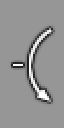
|
13 |
Rotate_Large_Plus_White |
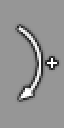
|
14 |
Rotate_Medium_Minus_White |

|
15 |
Rotate_Medium_Plus_White |

|
16 |
Rotate_Small_Minus_White |

|
17 |
Rotate_Small_Plus_White |

|
Files for these cursors can be found under XPPython3/cursors. For your
convenience GIMP (*.xcf)
files are included. If you want to change a cursor, please make a copy and place the
resulting PNG file somewhere else. These
images were extracted from X-Plane 12’s Resources/bitmaps/interface.png.