Avionics API
To use:
import xp
The Avionics API allows you to modify the drawing and behavior of built-in cockpit devices (GNS, G1000, etc.), and create new cockpit devices.
Built-in Avionics Device Functions allow you to draw before and/or after X-Plane, and optionally prevent X-Plane from drawing on the cockpit device at all.
registerAvionicsCallbacksEx()andunregisterAvionicsCallbacks()for built-in devices, withgetAvionicsHandle()to get the device handle to be used with other Avionics API..
Custom Avionics Device Functions allow you to create new cockpit devices, where you’re responsible for drawing the screen and the bezel.
createAvionicsEx()anddestroyAvionics()for custom devices.
Regardless of the device, the API allows allows you to receive mouse events for your device (click, drag, scroll, etc.) for the screen
and bezel. Events are available for popped-out 2d cockpit devices, and 3d devices (provided you have
created a ATTR_manip_device manipulator for you Object).
Avionics Popup Functions allow you to manipulate the state and position of the popup device windows.
isAvionicsBound()to see if the device is used by the current aircraftisAvionicsPopupVisible(),setAvionicsPopupVisible()to show/hide the 2D version of the device, in a popup window within the X-Plane window (as opposed to “popped-out”).isAvionicsPoppedOut(),popOutAvionics()to pop-out the 2D version of the device into a separate window.isCursorOverAvionics(),hasAvionicsKeyboardFocus(),takeAvionicsKeyboardFocus(), to manage user-interaction with the custom device.getAvionicsGeometry(),setAvionicsGeometry(),getAvionicsGeometryOS(), andsetAvionicsGeometryOS()to control position of the custom device’s popped out window.getAvionicsBrightnessRheo()andsetAvionicsBrightnessRheo()to control the brightness of the display, andgetAvionicsBusVoltsRatio()to retrieve calculated voltage level of the device.avionicsNeedsDrawing()to optimize drawing of the custom device.
When working with avionics devices, all coordinates for drawing & mouse events are in texels, with (0,0) origin in the lower left corner. X-Plane handles scaling for popped-out 2D windows. When your draw function is called, OpenGL is properly set for the device’s viewport.
Built-in Avionics Device Functions
To manipulate built-in avionics devices, you can register/unregister a set of callbacks. With the resulting
XPLMAvionicsID handle, you can then manipulate the popup widow using functions listed with Avionics Popup Functions.
If you want to manipulate the window without callbacks, you can directly retrieve the
handle using getAvionicsHandle().
Built-in Device IDs
Use any of these device IDs with registerAvionicsCallbacksEx() or getAvionicsHandle().
|
GNS430, pilot side |
|
GNS430, copilot side |
|
GNS530, pilot side |
|
GNS530, copilot side |
|
Generic airliner CDU, pilot side |
|
Generic airliner CDU, copilot side |
|
G1000 Primary Flight Display, pilot side |
|
G1000 Multifunction Display |
|
G1000 Primary Flight Display, copilot side |
|
Primus CDU, pilot side |
|
Primus CDU, copilot side |
|
Primus Primary Flight Display, pilot side |
|
Primus Primary Flight Display, copilot side |
|
Primus Multifunction Display, pilot side |
|
Primus Multifunction Display, copilot side |
|
Primus Multifunction Display, central |
|
Primus Radio Management Unit, pilot side |
|
Primus Radio Management Unit, copilot side |
|
Airbus MCDU, pilot side |
|
Airbus MCDU, copilot side |
|
Airbus MCDU (requires X-Plane 12.4+) |
- registerAvionicsCallbacksEx(deviceID, before, after, refCon, bezelClick, bezelRightClick, bezelScroll, bezelCursor, screenTouch, screenRightTouch, screenScroll, screenCursor, keyboard)
- Parameters
deviceID (int) – One of built-in integer devices as listed above
refCon (Any) – reference constant to be passed to your callbacks
callbacks – … default to None. See below for specific callbacks
- Returns
XPLMAvionicsID or None on error.
If not specified, any callback (and the refCon) will be set to None.
Returns an XPLMAvionicsID which should be passed to
unregisterAvionicsCallbacks()when no longer needed.Official SDK XPLMRegisterAvionicsCallbacksEx and Callbacks XPLMCustomizeAvionics_t
Callback function signature
Returns
before(deviceID, isBefore, refCon)
1 =allow X-Plane to draw
0 =suppress X-Plane drawing
after(deviceID, isBefore, refCon)
No return
bezelClick(x, y, mouseStatus, refCon)
1 =Consume click
0 =Pass it through
bezelRightClick(x, y, mouseStatus, refCon)
1 =Consume click
0 =Pass it through
bezelScroll(x, y, wheel, clicks, refCon)
1 =Consume click
0 =Pass it through
bezelCursor(x, y, refCon)
XPLMCursorStatus
screenTouch(x, y, mouseStatus, refCon)
1 =Consume click
0 =Pass it through
screenRightTouch(x, y, mouseStatus, refCon)
1 =Consume click
0 =Pass it through
screenScroll(x, y, wheel, clicks, refCon
1 =Consume event
0 =Pass it through
screenCursor(x, y, refCon)
XPLMCursorStatus
keyboard(key, flags, vKey, refCon, losingFocus)
1 =Consume event
0 =Pass it through
Each callback is further described next:
- before(deviceID, isBefore, refCon)
- after(deviceID, isBefore, refCon)
- Parameters
deviceID (int) – integer device ID used on registration
isBefore (int) – 1=
beforecallback, 0=aftercallbackrefCon (Any) – refCon you provided on registration
- Return int
1= X-Plane should continue to draw; 0= block further draw this frame.
Both before and after drawing callback functions have identical signatures. Return value for after callback is ignored. Return value for before function is either 1 to indicate X-Plane should continue to draw, or 0 to indicate X-Plane should not also draw on the specified device.
Note that your callback is called even if the device is not “powered on”.
>>> from OpenGL import GL
>>> def MyDraw(deviceID, isBefore, refCon):
...     xp.setGraphicsState(0, 1)
...     xp.drawString([1, 0, 0], 10, 10,
...                   f"Viewport size is {GL.glGetIntegerv(GL.GL_VIEWPORT)}",
...                   None, xp.Font_Basic)
...     return 1
...
>>> avionicsID = xp.registerAvionicsCallbacksEx(xp.Device_G1000_PFD_1, after=MyDraw)

Official SDK XPLMAvionicsCallback_f
- bezelClick(x, y, mouseStatus, refCon)
- bezelRightClick(x, y, mouseStatus, refCon)
- screenTouch(x, y, mouseStatus, refCon)
- screenRightTouch(x, y, mouseStatus, refCon)
- Parameters
x (int) – horizontal position of mouse relative lower-left corner of screen or bezel
y (int) – vertical position of mouse relative lower-left corner of screen or bezel
mouseStatus (int) – XPLMMouseStatus see values below.
refCon (Any) – refCon you provided on registration
- Return int
1= consume the click, 0= pass the click through to the device
bezelClick,bezelRightClickare called when the device’s bezel is clicked.screenTouchandscreenRightTouchare called when the device’s screen is clicked.Mouse Status Value
SDK Value
- MouseDown = 1
xplm_MouseDown
- MouseDrag = 2
xplm_MouseDrag
- MouseUp = 3
xplm_MouseUp
When mouse is clicked (screen is touched), your callback will be invoked repeatedly. It is first called with the MouseDown status. It is then called zero or more times with the MouseDrag status, and then finally it is called once with the MouseUp status:
>>> def click(x, y, mouseStatus, refcon):
...     if mouseStatus == xp.MouseDown:
...         xp.log(f"Clicked at ({x}, {y})")
...     return 1
...
>>> avionicsID = xp.registerAvionicsCallbacksEx(xp.Device_G1000_PFD_1, screenTouch=click)
Note
If you return 0 on MouseDown, you will not receive MouseDrag or MouseUp events. Also, be aware that edges of popups are reserved for X-Plane window manipulation (i.e., resize and move) and you will not receive events near the edges. This includes what might be considered the “title bar”, the 25 pixels or so at the top of the popup window.
Official SDK XPLMAvionicsMouse_f
- bezelScroll(x, y, wheel, clicks, refCon)
- screenScroll(x, y, wheel, clicks, refCon)
Mouse wheel handling callback prototype.
- Parameters
x (int) – horizontal position of mouse
y (int) – vertical position of mouse
wheel (int) – 0= vertical axis, 1= horizontal axis
clicks (int) – number of “clicks” indicating how far the wheel has turned since previous callback
refCon (Any) – refCon you provided on creation
- Return int
1= consume the mouse wheel click, 0= pass to existing device handler
The SDK calls your mouse wheel callback when one of the mouse wheels is turned within your window. Return 1 to consume the mouse wheel clicks or 0 to pass them on to a lower window. (You should consume mouse wheel clicks even if they do nothing, if your window appears opaque to the user.) The number of clicks indicates how far the wheel was turned since the last callback. The wheel is 0 for the vertical axis or 1 for the horizontal axis (for OS/mouse combinations that support this).
The units for x and y values matches the units used in your screen or bezel with origin in lower left of corner of screen or bezel.:
>>> def scroll(x, y, wheel, clicks, refCon):
...    xp.log(f"at ({x}, {y}) #{clicks} {'vertical' if wheel == 0 else 'horizontal'}")
...    return 0
...
>>> avionicsID = xp.registerAvionicsCallbacksEx(xp.Device_G1000_PFD_1, bezelScroll=scroll, screenScroll=scroll)
Official SDK XPLMAvionicsMouseWheel_f
- bezelCursor(x, y, refCon)
- screenCursor(x, y, refCon)
- Parameters
x (int) – horizontal position of mouse
y (int) – vertical position of mouse
refCon (Any) – refCon you provided on creation
- Returns
XPLMCursorStatus, such as
xp.CursorDefault
The SDK calls your cursor status callback when the mouse is over your bezel or screen. Return a cursor status code to indicate how you would like X-Plane to manage the cursor. If you return
CursorDefault, the SDK will handle the cursor:>>> def hideCursor(x, y, refCon): ... return xp.CursorHidden ... >>> avionicsID = xp.registerAvionicsCallbacksEx(xp.Device_G1000_PFD_1, bezelCursor=hideCursor)
Note
you should never show or hide the cursor yourself using non-X-Plane routines as these APIs are typically reference-counted and thus cannot safely and predictably be used by the SDK. Instead return one of
CursorHiddento hide the cursor orCursorArrow/CursorCustomto show the cursor.If you want to implement a custom cursor by drawing a cursor in OpenGL, use
CursorHiddento hide the OS cursor and draw the cursor using a 2-d bezel or screen drawing callback.If you want to use a custom OS-based cursor, return
CursorCustomto ask X-Plane to show the cursor but not affect its image. You can then usexp.setCursor()to display a custom cursor you’ve loaded. (Seexp.setCursor()for details.)Since X-Plane 12.3 the sim ships with a large number of useful “avionics” type cursor. See XPLMCursorStatus for supported cursors.
Official SDK XPLMAvionicsCursor_f
- keyboard(key, flags, vKey, refCon, losingFocus)
Process key press.
- Parameters
key (char) – Key pressed (e.g., ‘A’)
flags (int) – OR’d values for Shift /Ctrl, etc. See table below
vKey (int) – Virtual key code (Virtual Key Codes) (e.g., ‘a’ key == xp.VK_A or 0x41)
refCon (Any) – refCon you provided on register
losingFocus (int) – 1= your device is losing keyboard focus (and key should be ignored)
- Return int
1= consume the event or 0= let X-Plane process it (for stock avionics devices)
Key Flags Value
SDK Value
ShiftFlag
xplm_ShiftFlag
OptionAltFlag
xplm_OptionAltFlag
ControlFlag
xplm_ControlFlag
DownFlag
xplm_DownFlag
UpFlag
xplm_UpFlag
For keyboard focus to work, the built-in device needs to support keyboard focus. The CDU on Laminar’s Boeing 737-800 supports keyboard focus, so if you use that aircraft and popup the pilot’s CDU, you can add a callback, watch keystrokes (after you’ve taken keyboard focus) and when you send focus somewhere else, you’ll receive a losingFocus indication:
>>> def my_keyboard(key, flags, vKey, refCon, losingFocus):
...     xp.log(f"{key=}, {flags=}, {vKey=}, {losingFocus=}")
...     return 1
...
>>> avionicsID = xp.registerAvionicsCallbacksEx(xp.Device_CDU739_1, keyboard=my_keyboard)
>>> xp.takeAvionicsKeyboardFocus(avionicsID)
Official SDK XPLMAvionicsKeyboard_f
- unregisterAvionicsCallbacks(avionicsID)
Unregisters specified avionics callbacks.
- Parameters
avionicsID (XPLMAvionicsID) – from
registerAvionicsCallbacksEx()orgetAvionicsHandle()- Returns
None
>>> xp.unregisterAvionicsCallbacks(avionicsID)
Official SDK XPLMUnregisterAvionicsCallbacks
- getAvionicsHandle(deviceID)
Returns XPLMAvionicsID for specified device.
- Parameters
deviceID (int) – Built-in avionics device enumeration.
- Returns
XPLMAvionicsID
Called only for built-in devices (e.g., Device_G1000_PFD_1), returns an XPLMAvionicsID handle for the indicated device. This is similar to calling
registerAvionicsCallbacksEx()with no registered callbacks. This allows you to interact with the device’s popup window without intercepting any of its callbacks:>>> avionicsID = xp.getAvionicsHandle(xp.Device_G1000_PFD_1) >>> avionicsID <capsule object "XPLMAvionicsID" at 0x2296c7840>
Official SDK XPLMGetAvionicsHandle
Custom Avionics Device Functions
These functions allow you to programmatically create avionics and destroy avionics devices. With the resulting XPLMAvionicsID handle, you can then manipulate the popup window using functions lists with Avionics Popup Functions.
Want a feature-rich example? Check out the PI_Avionics1_Draw.py sample program downloaded into your PythonPlugins/samples
folder. Copy it into Resources/PythonPlugins/ and restart X-Plane.
- createAvionicsEx(screenWidth=100, screenHeight=200, bezelWidth=140, bezelHeight=250, screenOffsetX=20, screenOffsetY=25, drawOnDemand=0, bezelDraw=None, screenDraw=None, bezelClick=None, bezelRightClick=None, bezelScroll=None, bezelCursor=None, screenTouch=None, screenRightTouch=None, screenScroll=None, screenCursor=None, keyboard=None, brightness=None, deviceID='deviceID-<num>', deviceName='deviceName-<num>', refcon=None)
- Parameters
screenWidth (int) – width of screen portion of device
screenHeight (int) – height of screen portion of device
bezelWidth (int) – full width of bezel, which fully surrounds the screen portion.
bezelHeight (int) – full height of bezel, which fully surrounds the screen portion.
screenOffsetX (int) – horizontal offset of the left edge of the screen from the left edge of the bezel
screenOffsetY (int) – vertical offset of the bottom edge of the screen from the bottom edge of the bezel
drawOnDemand (int) – 1= draw device only on demand (See
avionicsNeedsDrawing()); 0= draw every frame.callbacks – … see below
deviceID (str) – unique string to identify the device. See notes below. If not provided, we construct one as “device-ID-<num>”
deviceName (str) – user-friendly name of the device. If not provided, we construct one as “deviceName-<num>”
refcon (Any) – reference constant to be passed to your callbacks.
- Returns
XPLMAvionicsID
Creates a custom Avionics device and returns an avionicsID handle (XPLMAvionicsID), which should be passed to
destroyAvionics()when no longer needed.Without parameters, a simple blank device is drawn. Note that the bezel is transparent, the screen background is OpenGL default, and the popup buttons (close and popout) are visible only when you happen to mouse over them:
>>> avionicsID = xp.createAvionicsEx(deviceName="My Fine Avionics")
>>> xp.setAvionicsPopupVisible(avionicsID)

The size of the device is in texels and will be scaled by X-Plane. That is, regardless of how the device window is resized, you can treat it as the same height and width (and mouse events will be similarly mapped.)
The size of the bezel must be at least as much as the screen + offset.
The default parameter values:
screenWidth=100screenHeight=200bezelWidth=140bezelHeight=250screenOffsetX=20screenOffsetY=25can be visualized as:
(0, 250) --------------------------- (140, 250)
  |       BEZEL (140 x 250)              |
  |                                      |
  |           (20, 225) ----- (120, 225) |
  |              |                |      |
  |←──────┬─────→|  SCREEN        |      |
  | offsetX=20   |   (100 x 200)  |      |
  |              |                |      |
  |              |                |      |
  |              |                |      |
  |              |                |      |
  |              |                |      |
  |           (20, 25)------- (120, 25)  |
  |                      ↑               |
  |                      ├ offsetY=25    |
  |                      ↓               |
(0, 0) ----------------------------- (140, 0)
When drawing, the lower left corner of the bezel is (0,0) and the lower left corner of the screen is also (0,0), but will be displaced by the given values for offset.
Note that
deviceIDneeds to be unique, and can be used within 3d cockpit as the namedATTR_cockpit_device. Observe that deviceID with custom avionics is a string, but deviceID for built-in devices is an integer enumeration. Don’t confuse the two!deviceNamewill be displayed to the user as the title of the device window when popped out.Note
The device is created not visible, that is, it will not be popped-up, or popped-out. However, because X-Plane automatically remembers window position, if the deviceID has been used before, its position will be initialized to whatever is stored under preferences. (Look the file
<X-Plane>/Output/preferences/Miscellaneous.prfforPposition records with your device id.)Most of the callbacks are identical to those used with
registerAvionicsCallbacksEx()above, with the exception ofscreenDraw(),bezelDraw(), andbrightness()which we describe below:- screenDraw(refCon)
This is the prototype for drawing callbacks for custom devices’ screens.
- Parameters
refCon (Any) – reference constant provided with
createAvionicsEx()- Returns
None
Upon entry the OpenGL context will be correctly set up for you and OpenGL will be in panel coordinates for 2d drawing. The OpenGL state (texturing, etc.) will be unknown.
X-Plane does not clear your screen for you between calls - this means you can re-use portions to save drawing, but otherwise you must call glClear() to erase the screen’s contents.
This interacts with the value of the
drawOnDemandparameter. IfdrawOnDemand=0, this draw function is called every frame. IfdrawOnDemand=1, this draw function is called once. To call it again, you need to callavionicsNeedsDrawing(), which will call this function one more time.>>> from OpenGL import GL >>> from XPPython3 import xpgl >>> def MyScreenDraw(refCon): ... xpgl.clear() ... xp.setGraphicsState(depthWriting=1, alphaBlending=1) ... xpgl.drawTriangle(0, 0, refCon['s_width'], refCon['s_height'], refCon['s_width'], 0, color=xpgl.Colors['green']) ... >>> deviceSize = {'s_width': 100, 's_height': 200, 'b_width': 140, 'b_height': 250} >>> avionicsID = xp.createAvionicsEx(screenDraw=MyScreenDraw, refCon=deviceSize) >>> xp.setAvionicsPopupVisible(avionicsID)
Note also, the screen is drawn over the bezel, and blends with whatever the background is. For example, if you don’t draw a bezel at all, as in the above example, your screen will blend with whatever is showing in X-Plane, likely not what you want.

Commonly, you’ll draw the bezel with a black background to avoid this see-through.
- bezelDraw(r, g, b, refCon)
This is the prototype for drawing callbacks for custom devices’ bezel.
- Parameters
r (float) – ambient Red
g (float) – ambient Green
b (float) – ambient Blue
refCon (Any) – reference constant provided with
createAvionicsEx()
- Returns
None
You are passed in the red, green, and blue values you can optionally use for tinting your bezel according to ambient light.
Upon entry the OpenGL context will be correctly set up for you and OpenGL will be in panel coordinates for 2d drawing. The OpenGL state (texturing, etc.) will be unknown.
Unlike the
screenDraw(), this function is called every frame and is not influenced by thedrawOnDemandparameter.You’re drawing the full extent of the bezel, which includes space behind the screen. Bezel and screen will blend, so most likely, you’ll want to draw a black rectangle in the position (… at the offset) of the screen.
Unlike
screenDraw(), you do not need to include calls to glClear(). In the following example, we useMyScreenDrawas defined withscreenDraw(), and addMyBezelDraw. For illustration purposes, we also draw using a non-black color behind the screen area, so you can see the blending of screen + bezel.>>> from OpenGL import GL >>> from XPPython3 import xpgl >>> def MyBezelDraw(r, g, b, refCon): ... xpgl.drawPolygon([(0, 0), (0, refCon['b_height']), (refCon['b_width'], refCon['b_height']), (refCon['b_width'], 0)], thickness=3, isFilled=True, color=xpgl.Colors['black']) ... xpgl.drawTriangle(0, 0, 0, refCon['b_height'], refCon['b_width'], 0, color=xpgl.Colors['orange']) ... >>> deviceSize = {'s_width': 100, 's_height': 200, 'b_width': 140, 'b_height': 250} >>> avionicsID = xp.createAvionicsEx(screenDraw=MyScreenDraw, bezelDraw=MyBezelDraw, refCon=deviceSize) >>> xp.setAvionicsPopupVisible(avionicsID)

Note the color blending between screen and bezel, and note that the top of the bezel goes up into the area where the close and pop-out buttons are located.
- brightness(rheoValue, ambientBrightness, busVoltsRatio, refCon)
This is the prototype for screen brightness callbacks for custom devices.
- Parameters
rheoValue (float) – current instrument rheostat brightness [0..1]
ambientBrightness (float) – ambientBrightness [0..1]
busVoltsRatio (float) – busVoltsRatio [0..1], or -1 if device not bound
refCon (Any) – reference constant provided with
createAvionicsEx()
- Return float
ratio [0..1] of the screen’s maximum brightness to display the screen in 3D cockpit
If you provide a callback, you can return the ratio of the screen’s maximum brightness that the simulator should use when displaying the screen in the 3D cockpit.
rheoValue is the current ratio value (between 0 and 1) of the instrument brightness rheostat to which the device is bound.
ambientBrightness is the value (between 0 and 1) that the callback should return for the screen to be at a usable brightness based on ambient light (if your device has a photo cell and automatically adjusts its brightness, you can return this and your screen will be at the optimal brightness to be readable, but not blind the pilot).
busVoltsRatio is the ratio of the nominal voltage currently present on the bus to which the device is bound, or -1 if the device is not bound to the current aircraft.
Official SDK XPLMCreateAvionicsEx
- destroyAvionics(avionicsID)
- Parameters
avionicsID – XPLMAvionicsHandle as obtained using
createAvionicsEx().- Returns
None
Removes the custom Avionics device. If it is being displayed, it is removed from the screen.:
>>> xp.destroyAvionic(avionicsID)
You should not attempt to destroy a built-in avionics device (it does not appear to do anything.)
Official SDK XPLMDestroyAvionics
Avionics Popup Functions
You can query and manipulate a built-it or custom avionics device window, once you have its
AvionicsID as returned by registerAvionicsCallbacksEx(), createAvionicsEx(), or getAvionicsHandle().
- isAvionicsBound(avionicsID)
- Parameters
avionicsID (XPLMAvionicsID) – as from
createAvionicsEx(),getAvionicsHandle(), orregisterAvionicsCallbacksEx()- Return int
1 if device is used by the current aircraft, 0 otherwise
For example, the G1000-equipped C172 reports:
>>> xp.isAvionicsBound(xp.getAvionicsHandle(xp.Device_G1000_PFD_1))
1
>>> xp.isAvionicsBound(xp.getAvionicsHandle(xp.Device_Primus_PFD_1))
0
Official SDK XPLMIsAvionicsBound
- isAvionicsPopupVisible(avionicsID)
- Parameters
avionicsID (XPLMAvionicsID) – as from
createAvionicsEx(),getAvionicsHandle(), orregisterAvionicsCallbacksEx()- Return int
1 if device is currently displayed in a popup window.
A device may be visible on the screen, but if it is not displayed in a popup window, this function returns 0. Note also, that if the 2D device is “popped-out” it is also visible, even if it is otherwise obscured by other windows.:
>>> xp.isAvionicsPopupVisible(avionicsID)
1
Note “popup” refers to the 2D window displayed within the X-Plane window. “popped out” refers to the 2D windows popped out of the X-Plane window and drawn in a separate window. On the left is a “visible popup”, on the right it is “popped-out” as a separate OS window.
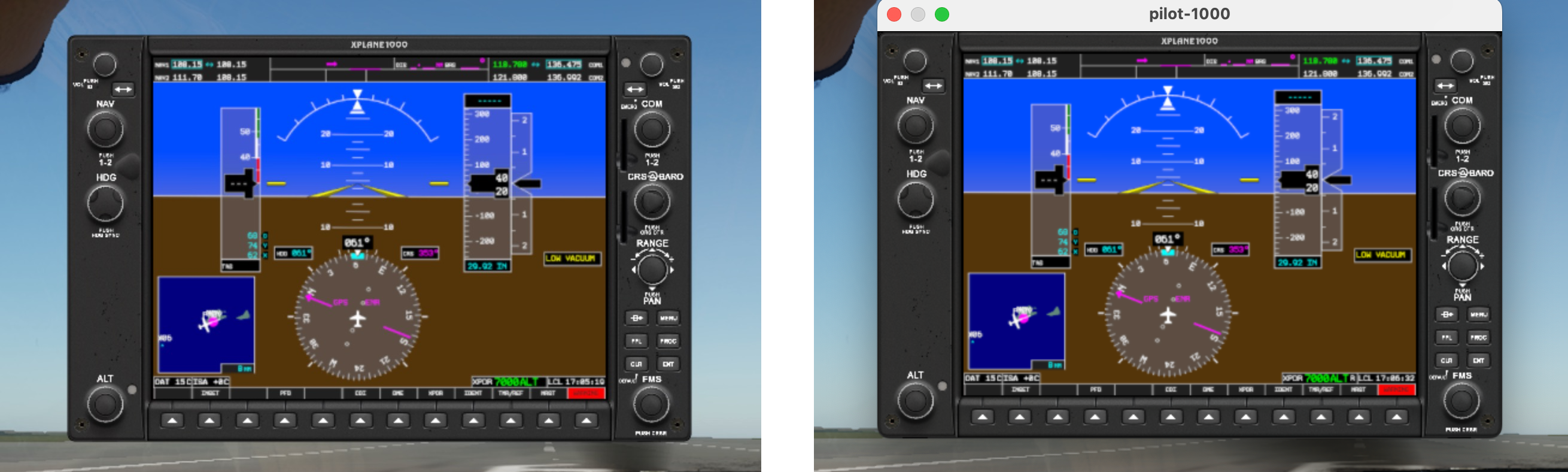
Official SDK XPLMIsAvionicsPopupVisible
- setAvionicsPopupVisible(avionicsID, visible=1)
- Parameters
avionicsID (XPLMAvionicsID) – as from
createAvionicsEx(),getAvionicsHandle(), orregisterAvionicsCallbacksEx()visible (int) – 1= make visible, 0= remove popup (will also remove popped-out window)
- Return int
1 if device is currently displayed in a popup window.
Shows (hides) the device’s 2d popup window. If the device is also popped-out,
visible=0will close (and hide) the popped-out window;visible=1has no effect on an already-popped-out display.:>>> xp.setAvionicsPopupVisible(avionicsID) >>> xp.isAvionicsPopupVisible(avionicsID) 1 >>> xp.setAvionicsPopupVisible(avionicsID, 0) >>> xp.isAvionicsPopupVisible(avionicsID) 0
When you “close” a popped-up avionics device by clicking on the close button in upper left, or hide it using this fucntion, the device still exists and its draw functions continue to be called. You may want to consider this and change your avionics drawing functions based on device visibility.
Official SDK XPLMSetAvionicsPopupVisible
- isAvionicsPoppedOut(avionicsID)
- Parameters
avionicsID (XPLMAvionicsID) – as from
createAvionicsEx(),getAvionicsHandle(), orregisterAvionicsCallbacksEx()- Return int
1 if device is currently displayed in an OS popped-out window.
Returns 1 if the 2D device window is currently popped out in an os window. Returns 0 if the window is in a popup, but not popped out, or if the device is displayed only as part of the 3d cockpit (i.e, not popup visible).:
>>> xp.isAvionicsPoppedOut(avionicsID)
0
Official SDK XPLMIsAvionicsPoppedOut
- popOutAvionics(avionicsID)
- Parameters
avionicsID (XPLMAvionicsID) – as from
createAvionicsEx(),getAvionicsHandle(), orregisterAvionicsCallbacksEx()- Returns
None
Shows the device’s 2d window as a popped-out window, separate from the X-Plane window. Note you can “unset” a popped-out device by setting it not visible
xp.setAvionicsPopupVisible(avionicsID, visible=0).:>>> xp.popOutAvionics(avionicsID) >>> xp.isAvionicsPoppedOut(avionicsID) 1 >>> xp.isAvionicsPopupVisible(avionicsID) 1 >>> xp.setAvionicsPopupVisible(avionicsID, 0) >>> xp.isAvionicsPoppedOut(avionicsID) 0
Official SDK XPLMPopOutAvionics
- isCursorOverAvionics(avionicsID)
Is cursor over 2D device screen?
- Parameters
avionicsID (XPLMAvionicsID) – as from
createAvionicsEx(),getAvionicsHandle(), orregisterAvionicsCallbacksEx()- Return (int, int)
x, y mouse position if over popped up, or popped out device and the device has focus. None otherwise.
Note that (x, y) reflects device’s screen coordinates, and will return None if cursor is over the bezel or other part of X-Plane, or if some other window has focus.
>>> xp.isCursorOverAvionics(avionicsID)
(619, 510)
Official SDK XPLMIsCursorOverAvionics
- hasAvionicsKeyboardFocus(avionicsID)
Does avionics device currently have keyboard focus.
- Parameters
avionicsID (XPLMAvionicsID) – as from
createAvionicsEx(),getAvionicsHandle(), orregisterAvionicsCallbacksEx()- Return int
1 if device has keyboard focus
Keyboard focus may be associated with a device, a window, or to X-Plane as a whole. This checks to see if the current device has focus. All Custom devices may have keyboard focus. Some built-in, such as Airbus MCDU may, but others such as G1000 are not able to have focus:
>>> xp.hasAvionicsKeyboardFocus(xp.getAvionicsHandle(xp.Device_G1000_PFD_1))
0
>>> xp.hasAvionicsKeyboardFocus(myCustomAvionicsDevice)
0
>>> xp.takeAvionicsKeyboardFocus(myCustomAvionicsDevice)
Official SDK XPLMHasAvionicsKeyboardFocus
- takeAvionicsKeyboardFocus(avionicsID)
Transfer keyboard focus to device, if possible
- Parameters
avionicsID (XPLMAvionicsID) – as from
createAvionicsEx(),getAvionicsHandle(), orregisterAvionicsCallbacksEx()- Returns
None
If the device is capable of receiving keyboard focus, this function sets focus to that device. Subsequent keystrokes will be handled by the device. The avionics device needs to be either in a popup, or popped out.
Official SDK XPLMTakeAvionicsKeyboardFocus
- getAvionicsGeometry(avionicsID)
- Parameters
avionicsID (XPLMAvionicsID) – as from
createAvionicsEx(),getAvionicsHandle(), orregisterAvionicsCallbacksEx()- Returns
four integers (left, top, right, bottom)
Returns garbage values if the device is popped out. (With 12.3 it appears to return (0, 0, 0, 0) when the device is popped out.):
>>> xp.getAvionicsGeometry(avionicsID)
(147, 728, 267, 609)
Note
Recall that the geometry of the panel, as reported here, is different from the OpenGL coordinate system width & height of the drawing area. The drawing coordinates are scaled up and down such that they remain the same, regardless of the actual size of the panel.
Official SDK XPLMGetAvionicsGeometry
- setAvionicsGeometry(avionicsID, left, top, right, bottom)
- Parameters
avionicsID (XPLMAvionicsID) – as from
createAvionicsEx(),getAvionicsHandle(), orregisterAvionicsCallbacksEx()left (int) –
top (int) –
right (int) –
bottom (int) – integer positions
- Returns
None
You can set the pop-up’s geometry while the device is not visible (e.g.,
setAvionicsPopupVisible(avionicsID, visible=0)), but the device is “popped out” you cannot set the pop-up’s geometry. The call is ignored.:>>> xp.getAvionicsGeometry(avionicsID) (147, 728, 267, 609) >>> xp.setAvionicsGeometry(avionicsID, 247, 828, 367, 709) # Shift display up and to the right 100 pixels
Official SDK XPLMSetAvionicsGeometry
- getAvionicsGeometryOS(avionicsID)
- Parameters
avionicsID (XPLMAvionicsID) – as from
createAvionicsEx(),getAvionicsHandle(), orregisterAvionicsCallbacksEx()- Returns
four integers (left, top, right, bottom)
Returns four integers for position of popped out avionics device in OS coordinates (left, top, right, bottom). Returns garbage values if the device is not popped out. (With 12.3 it appears to return (0, 0, 0, 0) when not popped out.):
>>> xp.getAvionicsGeometryOS(avionicsID)
(1529, 1352, 2363, 810)
Recall that OS coordinates are dependent on how your monitors are set up and if you’re running X-Plane full screen or in a window. See More about Window Positioning for details.
Official SDK XPLMGetAvionicsGeometryOS
- setAvionicsGeometryOS(avionicsID, left, top, right, bottom)
- Parameters
avionicsID (XPLMAvionicsID) – as from
createAvionicsEx(),getAvionicsHandle(), orregisterAvionicsCallbacksEx()left (int) –
top (int) –
right (int) –
bottom (int) – integer positions
- Returns
None
Sets position (and size) of popped out avionics device. You cannot set OS geometry if the device is not popped out.:
>>> xp.setAvionicsGeometryOS(avionicsID, 1529, 1352, 2363, 810)
Official SDK XPLMSetAvionicsGeometryOS
- getAvionicsBrightnessRheo(avionicsID)
Returns the brightness setting for the cockpit device screen.
- Parameters
avionicsID (XPLMAvionicsID) – as from
createAvionicsEx(),getAvionicsHandle(), orregisterAvionicsCallbacksEx()- Return float
between 0 and 1 for current brightness setting.
For devices bound to the current aircraft, this is a shortcut to getting the brightness rheostat value from dataref array
sim/cockpit2/electrical/instrument_brightness_ratio, using the appropriate index into the array.For devices not bound, the returns a value managed by the device itself:
>>> xp.getAvionicsBrightnessRheo(xp.getAvionicsHandle(xp.Device_G1000_PFD_1))
0.5
Official SDK XPLMGetAvionicsBrightnessRheo
- setAvionicsBrightnessRheo(avionicsID, brightness)
Sets the brightness for the device
- Parameters
avionicsID (XPLMAvionicsID) – as from
createAvionicsEx(),getAvionicsHandle(), orregisterAvionicsCallbacksEx()brightness (float) – ratio 0= dark, 1= full brightness
- Returns
None
For devices bound to the current aircraft, this is a shortcut to setting the brightness rheostat value from dataref array
sim/cockpit2/switches/instrument_brightness_ratio, using the appropriate index into the array.For devices not bound, this sets the value managed by the device itself:
>>> xp.setAvionicsBrightnessRheo(xp.getAvionicsHandle(xp.Device_G1000_PFD_1), .75)
Official SDK XPLMSetAvionicsBrightnessRheo
- getAvionicsBusVoltsRatio(avionicsID)
Nominal bus voltage for given device
- Parameters
avionicsID (XPLMAvionicsID) – as from
createAvionicsEx(),getAvionicsHandle(), orregisterAvionicsCallbacksEx()- Return float
[0..1] representing nominal bus voltage, -1 if device not bound to aircraft
>>> xp.getAvionicsBusVoltsRatio(xp.getAvionicsHandle(xp.Device_G1000_PFD_1))
0.91567
>>> xp.getAvionicsBusVoltsRatio(xp.getAvionicsHandle(xp.Device_G1000_PFD_2))
-1.0
And if you turn off power:
>>> xp.getAvionicsBusVoltsRatio(xp.getAvionicsHandle(xp.Device_G1000_PFD_1))
0.0
Returns the ratio of the nominal voltage (1= full voltage) of the electrical bus to which the given avionics device is bound. Or, -1 if the device is not bound to the current aircraft.
Official SDK XPLMGetAvionicsBusVoltsRatio
- avionicsNeedsDrawing(avionicsID)
Tells X-Plane that your device’s screen needs to be redrawn.
- Parameters
avionicsID (XPLMAvionicsID) – only for custom avionics devices (
createAvionicsEx()).- Returns
None
If your device is marked for on-demand drawing (
drawOnDemand=1), X-Plane will call your screen drawing callback before drawing the name frame. If your device is already drawn every frame (drawOnDemand=0), this has no effect.Note: your bezel is always drawn every frame. This function only effects the screen portion of the custom device:
>>> xp.avionicsNeedDrawing(avionicsID)
Official SDK XPLMAvionicsNeedsDrawing